
How to use an Easy Transfer cable to transfer files to new Windows 11 or Windows 10 PC
You’ve probably heard about using an Easy Transfer Cable to transfer your files from one computer to another. In this guide, we’ll learn how to do this transfer, which cables to use and what are today’s alternatives and improvements on the old transfer cable route (yes, you can even transfer without a cable!).
Do you need a special data transfer cable to move to a new computer?
Short answer: no – your WiFi, your router or one regular network cable is all it takes. A USB transfer cable only works with the software that came with it, and that software copies files, not your programs.
Transfer cables were designed for a time when computers had no other way to talk to each other. Today, the transfer runs over your WiFi or your regular home network – which you already have – and it is faster than the old USB transfer cables. If the two computers are not on the same network, a standard Ethernet cable between them is all it takes: no special cable, no drivers.
There is another difference that matters more than speed: a cable by itself only moves files. A transfer done with the right software brings over your programs, settings, profiles and files – so the new computer is actually ready to use, not just holding a copy of your documents.
I already bought a USB transfer cable (Plugable, Belkin). Can I use it?
Only with the software that came with it – Zinstall doesn’t use USB transfer cables at all. Those cables are made for their maker’s own software, and that software copies your files, not your programs.
- Plugable transfer cables come with Bravura Easy Computer Sync, which you download from Plugable. It copies files and folders; programs, as Plugable itself says, have to be reinstalled by hand.
- Belkin Easy Transfer cables were made for Microsoft’s Windows Easy Transfer, which is not part of Windows 10 or Windows 11.
That is why most people choose Zinstall WinWin, our most popular option: it transfers your programs, profiles, settings and accounts – not just files – over your WiFi, your router or a regular network cable. The USB cable can stay in the drawer. And if you really only need your files, Zinstall Easy Transfer copies those over your WiFi.
What is an Easy Transfer Cable?
An Easy Transfer Cable is a type of cable that helps transfer data from one computer to another. The transfer itself is done using a special software program that uses the cable to transfer your files. Once, these were special cables, usually USB cables (by Belkin, Plugable or Laplink) with a special box in the middle.
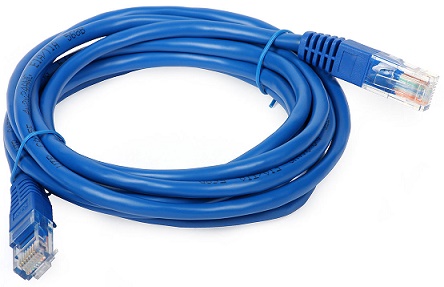
These days, you can also use Network cables (also called CAT5 or Ethernet cables) – in fact, you probably already have one and may not need to buy another! Network cables are faster and cheaper – and we recommend them. Here is how that cable looks like:
WiFi, router or cable: how should I connect the two computers?
Any of the three works: the same WiFi, both computers plugged into your router, or one regular network cable straight between them. None of them needs a special cable or any setup – Zinstall finds the other computer by itself. A cable is faster and steadier than WiFi.
- Same WiFi. Both computers are already on your home WiFi, so there is nothing to plug in. It is the slowest of the three, and a weak signal slows it down further – still fine for most transfers, especially overnight.
- Both plugged into your router. A network cable from each computer to the router. Faster and steadier than WiFi, and the easiest wired option when the router is close by.
- One network cable straight between the computers. For when there is no router nearby, or no network at all. You can even borrow the cable that connects your computer to the internet modem for the duration of the transfer.
Many new laptops have no network port. If yours doesn’t, just use WiFi.
How do I connect the computers with my Easy Transfer cable?
Use a regular network (Ethernet) cable – the one in the picture above, not a USB cable. Plug one end into the network port of each computer, the same kind of port your internet cable plugs into. It only fits one way, so you can’t get it wrong, and there is nothing to configure: once Zinstall runs on both computers, they find each other automatically.
How do I transfer files from one computer to another using an Easy Transfer cable?
Once the cable is connected, run the transfer software and start the transfer. We recommend Zinstall WinWin, our most popular option, because it transfers all of your stuff – programs, profiles, settings and files, not just files – to the new computer (more on that further on).
Can I transfer programs, emails, settings, passwords – not just files?
Yes. Using Zinstall WinWin, you will be able to transfer all of your stuff, including:
- Files, such documents, pictures, music, pictures and emails
- Settings, such as user profiles, emails, accounts, passwords, favorites, bookmarks, wallpaper and other personalization
- Programs, such as transferring Microsoft Office, Adobe Photoshop, Quickbooks, TurboTax, Firefox, Chrome, and other programs to the new computer
You can use WinWin with a cable, or even without a cable – going through wireless network or a USB drive.
How long does the transfer take?
Usually several hours. It depends on how much you have on the old computer, on the computers themselves, and on the connection – a cable is faster than WiFi. You don’t need to sit and watch it: once you press Go, it runs by itself, so it is easy to start it in the evening and let it run overnight.
Can I use the computers during the transfer?
Yes. Just don’t turn either computer off or disconnect it. And if the transfer does stop – say, one of the computers restarts – run Zinstall again and it continues the transfer.
Do I need a monitor for each computer?
No, one monitor is enough. Run Zinstall on the old computer first and leave it running, then switch the monitor over to the new computer and run Zinstall there to start the transfer.
Does the transfer need an internet connection?
Not for the transfer itself: it runs between the two computers, over your home network or the cable, so your internet speed doesn’t matter. Each computer needs the internet only once, to activate Zinstall.
If the new computer can’t get online yet, download Zinstall on another computer, copy the file to a USB stick and run it on the new computer from there. It can then be activated using any other computer that is online.
Do I have to set up the new computer first?
Only the basics: go through the new computer’s first-start screens until you reach the Windows desktop, so you can run Zinstall on it. There is no need to install your programs on it first – the transfer brings them over.
Can I transfer without a cable?
Yes, but you’ll need a Zinstall software to do it. It can transfer via your wireless network, your home router, or even through a USB backup drive. Ask us how in the chat on the bottom-right of the page.
Does this work with Windows 11 or Windows 10?
Yes. This transfer works with Windows 11, Windows 10, 8, 7, Vista and XP.
How to use an Easy Transfer cable to transfer programs and files to a Windows 11 or Windows 10 computer
- Run Zinstall WinWin on your current computer (the one you are transferring from).
Note: You can download WinWin here, and its user guide here. - Run Zinstall WinWin on the new Windows 10 computer
- You don’t need to do any configurations for the computers to connect – it’s automatic
- If the computers are already connect to same router, same Internet connection, or same wireless connection, you don’t need anything else
- If the computers are not connected at all, connect them with a network / Ethernet cable
- If you’d like to select which applications and files you want to transfer, press the Advanced menu. If you just want to transfer everything, you don’t need to go to the Advanced menu.
- Press “Go” on the Windows 11 or Windows 10 computer to start the transfer
Video tutorial – Easy Transfer Cable
Ready to transfer your programs and files?
guaranteeAny PC, any Windows Buy now